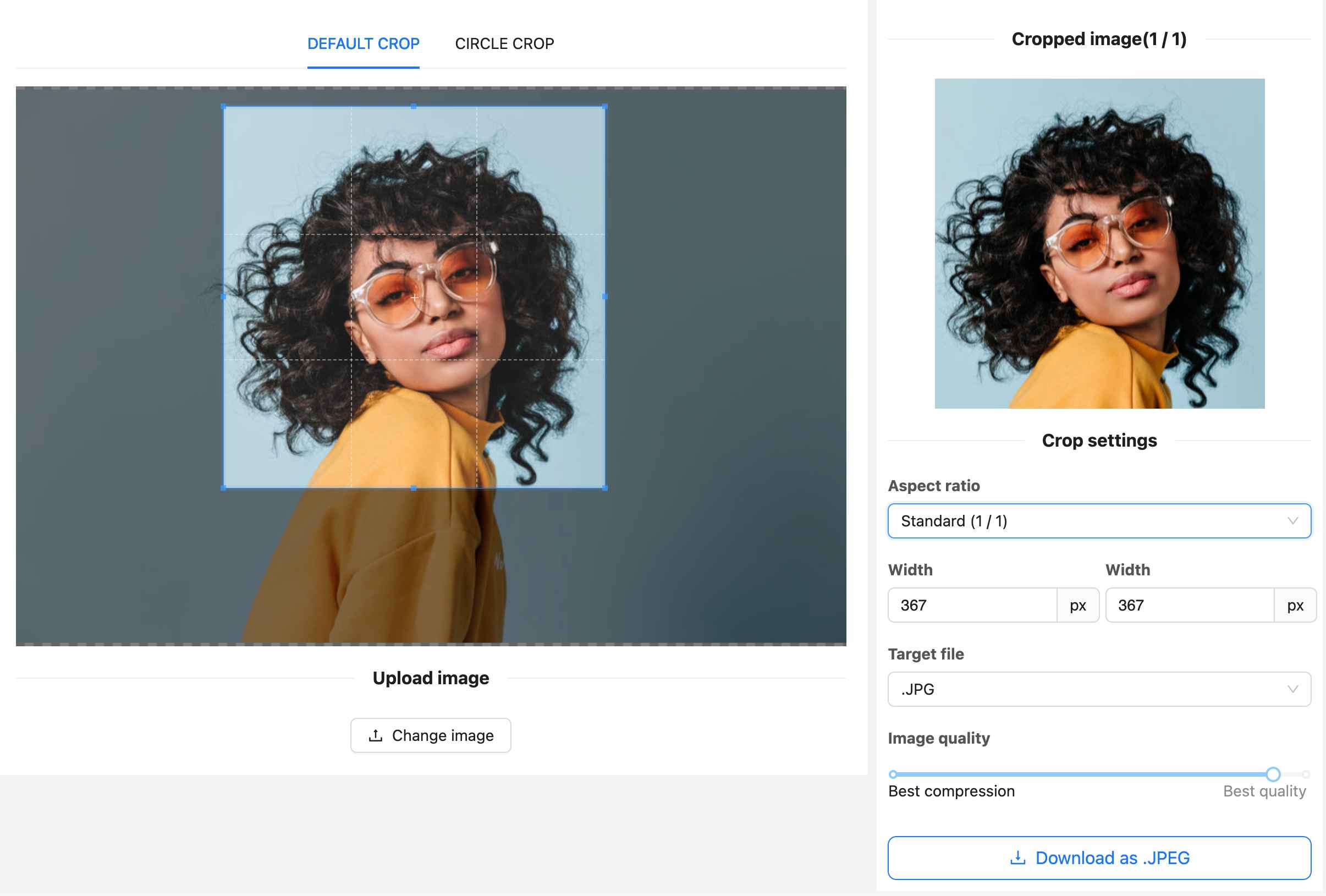
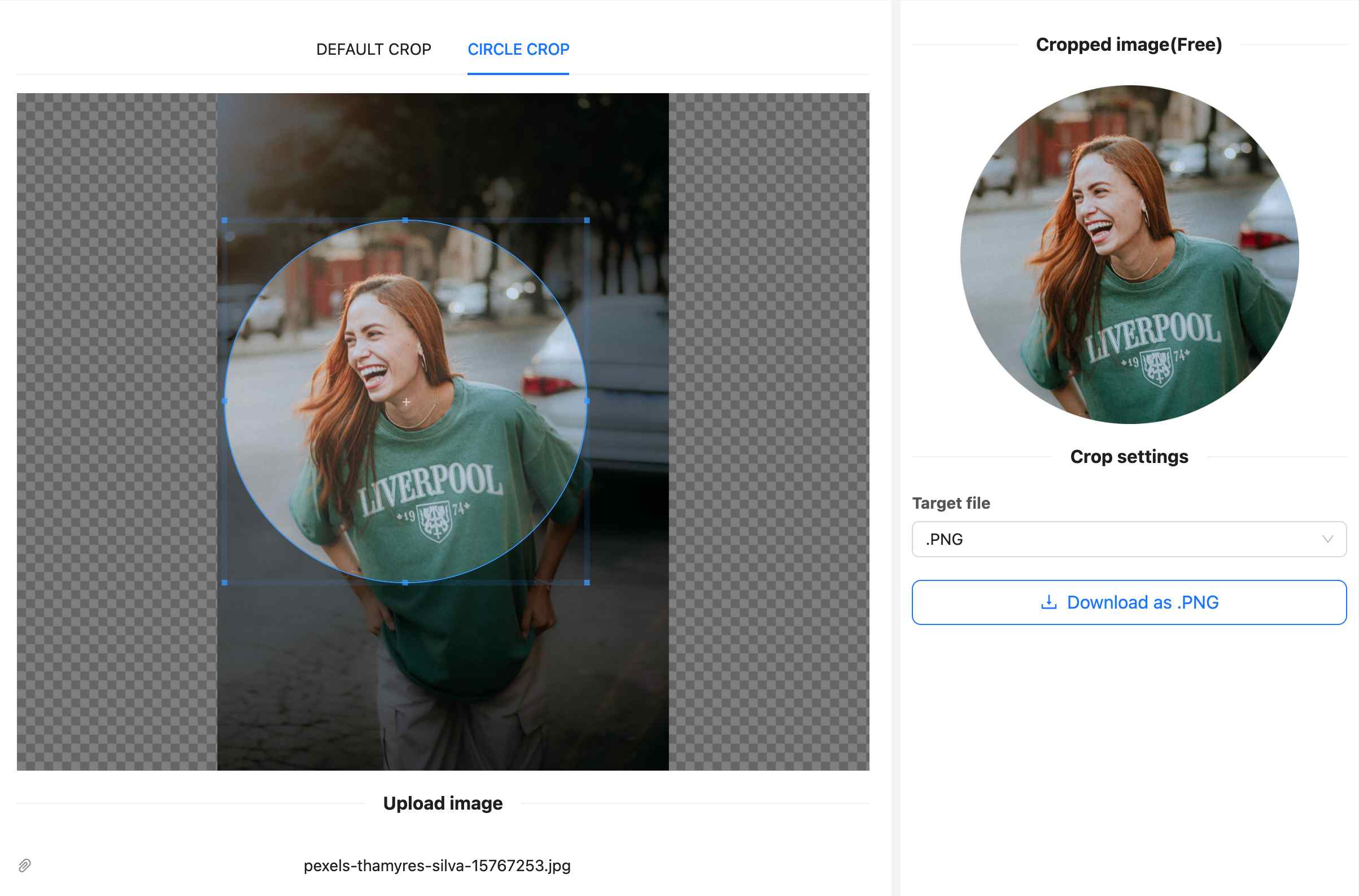
Free browser-based image cropper

Crop images online: circle and fixed aspect ratios

Crop JPG, PNG, and WebP images without installing editing software. Create a circular profile image, select a custom rectangle, or use a fixed aspect ratio for websites, documents, presentations, and social media.

Free online image cropping tool

Upload an image, choose the crop shape or ratio, adjust the visible area, and download the result. The tool appears directly below so you can start immediately.

This free tool accepts images directly in your browser. Before uploading sensitive or confidential media to any online tool, confirm that its handling matches your requirements.

How to crop an image online

  1. Upload your image. Choose a JPG, PNG, or WebP file from your device.
  2. Select the crop mode. Choose a circle, a fixed ratio, or a custom rectangular area.
  3. Position the subject. Move or resize the selection so the important content stays inside the crop.
  4. Review the composition. Check the edges, spacing, and final orientation.
  5. Download the cropped image. Save the finished file and verify it at the size where you intend to use it.

Crop a rectangular image with precision

Rectangle cropping removes unwanted edges and helps an image fit a specific layout. A fixed aspect ratio keeps the relationship between width and height consistent while you change the selected area.

This is useful for blog headers, product photos, presentation slides, form illustrations, thumbnails, and social posts. Choose the target ratio before cropping so you do not have to stretch or distort the finished image later.

Free online rectangular image cropping tool
Select a rectangular crop that matches the intended layout.

Common image aspect ratios

The correct ratio depends on where the image will appear. Always check the current requirements of the website or application where you plan to publish it.

Aspect ratioShapeCommon uses
1:1SquareProfile images, avatars, product thumbnails, and grid layouts
4:5VerticalPortraits, catalog images, and portrait-oriented posts
3:2Horizontal or verticalPhotography and standard camera compositions
4:3Horizontal or verticalPresentations, classic displays, and general website imagery
16:9WideVideo thumbnails, banners, presentations, and hero images
9:16TallMobile-first stories, vertical video covers, and phone layouts
Crop an image into a circle online for free
Create a centered circular crop for an avatar or profile image.

Crop an image into a circle

A circular crop works well for profile photos, team directories, account avatars, author images, contact cards, and logo marks. Place the subject near the center and leave enough space around faces or important details.

Remember that the underlying image file may still use a square canvas with transparent corners, depending on the downloaded format. PNG or WebP is generally preferable when transparent corners must remain transparent.

Tips for a clean, high-quality crop

Start with enough resolution

Cropping discards pixels outside the selected area. Begin with an image large enough for the final display size.

Protect the focal point

Keep faces, products, text, and other important details away from edges that may be clipped in the final layout.

Avoid stretching afterward

Use the required aspect ratio before downloading. Resizing width and height independently can distort the image.

  • Keep a copy of the uncropped original.
  • Check that horizons and architectural lines remain level.
  • Leave deliberate breathing room around the subject.
  • Preview the crop at its actual display size.
  • Use meaningful filenames and descriptive alternative text when publishing online.
  • Compress large images appropriately after editing to improve page performance.

Frequently asked questions

Can I crop an image into a circle online?

Yes. Upload the image, select the circular crop option, position the subject, and download the result.

What is a fixed aspect ratio?

An aspect ratio describes the relationship between image width and height. Locking the ratio keeps that relationship consistent while you resize the crop area.

Which image formats can I crop?

The cropper is designed for JPG, PNG, and WebP images.

Which ratio should I choose for a profile photo?

A 1:1 square is a useful starting point because many applications display profile images as squares or circles.

Does cropping reduce image quality?

Cropping removes pixels outside the selected area. Quality becomes a concern when the remaining crop is too small and must be enlarged significantly.

Can I use a cropped image in a form or PDF?

Yes. A correctly sized image can be used in websites, forms, PDFs, presentations, and other documents. See the guide to creating forms with PDF export.

More free tools

After preparing your image, create a QR code with a logo, scan an existing code with the QR code scanner from an image, or use the AbcSubmit form builder to add images to an online form.

Spread the love