Connect AbcSubmit to Zapier and automate form submissions
Use a new AbcSubmit submission to start a Zap, map collected form data into another app, test the workflow, and replace repetitive copy-and-paste work with a dependable process.

What does the AbcSubmit Zapier integration do?
The integration connects a form submission in AbcSubmit with an action in another Zapier-supported app. Zapier calls the event that starts an automation a trigger and the work that follows an action. The current AbcSubmit listing provides a New Submission trigger for a selected form.
For example, a completed lead form can create a row in a spreadsheet, send a tailored Gmail message, add information to a supported marketing app or begin another multi-step process. The exact apps, actions, task limits and polling frequency depend on Zapier’s current catalog and your Zapier plan.
Capture once
Collect structured data through a branded AbcSubmit form instead of retyping it in every tool.
Route automatically
Map approved fields into the destination app and apply Zapier filters or paths where available.
Monitor outcomes
Test with realistic entries and review automation history so failed runs do not disappear unnoticed.
Popular AbcSubmit automation ideas
Form to Google Sheets
Add a row for every qualifying submission to support reporting, triage or collaboration.
Form to Gmail
Send a message when a new submission arrives, using mapped fields carefully in the subject and body.
Lead to marketing
Send opted-in contacts to a supported marketing platform while preserving consent information.
Request to project work
Create a task or work item from an approved internal request and include a link back to the source record.
Registration to calendar
Create or update a supported calendar process when the submission contains verified scheduling details.
Files to cloud storage
Move eligible submission information or file references into a supported storage process with controlled access.
Zapier’s current AbcSubmit directory shows ready examples for Gmail and Google Sheets and lists apps such as Google Drive, Google Calendar, Mailchimp, ActiveCampaign, Microsoft Excel, Discord and Zoom as possible pairings. Confirm the exact trigger-action combination inside Zapier before promising an automation to users.
How to connect AbcSubmit to Zapier
Prepare the form
Publish the form, use clear field names and create a safe test submission containing representative data.
Choose the trigger
Open AbcSubmit in Zapier, start a Zap, select New Submission and choose the correct form.
Map the action
Connect the destination app, select an action and map each source field to the correct destination field.
Test and publish
Run a complete test, inspect the result in the destination, then turn on the Zap and monitor early runs.
Step 1: prepare a clean trigger form
Automation quality starts with form quality. Use descriptive labels such as “Work email,” “Requested start date” or “Company name,” because those labels make mapping and troubleshooting easier later. Avoid several fields with nearly identical names.
- Publish the correct version of the form
- Decide which fields are required
- Add validation for email, numbers, dates and other structured inputs
- Collect consent when data will be used for marketing
- Avoid sending secrets or unnecessary sensitive information
- Create a test submission that exercises conditional fields
If the process is still being designed, begin with an AbcSubmit form template or review the form builder with database storage guide.
Step 2: map AbcSubmit fields to the destination app
Field mapping controls where each answer goes. A person’s email should map to an email property, a quantity to a numeric property and a date to the format expected by the destination. Do not map a field merely because it is available.
| AbcSubmit data | Possible destination | Check before publishing |
|---|---|---|
| Name | Contact or requester name | Whether the destination uses one name field or separate first and last names |
| Contact email or notification recipient | Validation, consent and whether the field can ever be blank | |
| Choice field | Status, category, list or tag | Destination values and capitalization match expected options |
| Date and time | Due date, appointment or calendar event | Timezone, locale and required output format |
| Long text | Description, notes or message | Length limits and handling of line breaks or HTML |
| File upload | File URL or storage step | Permissions, expiry behavior, size and destination support |
| Submission ID | External reference or deduplication key | Keep a stable reference for troubleshooting and duplicate control |
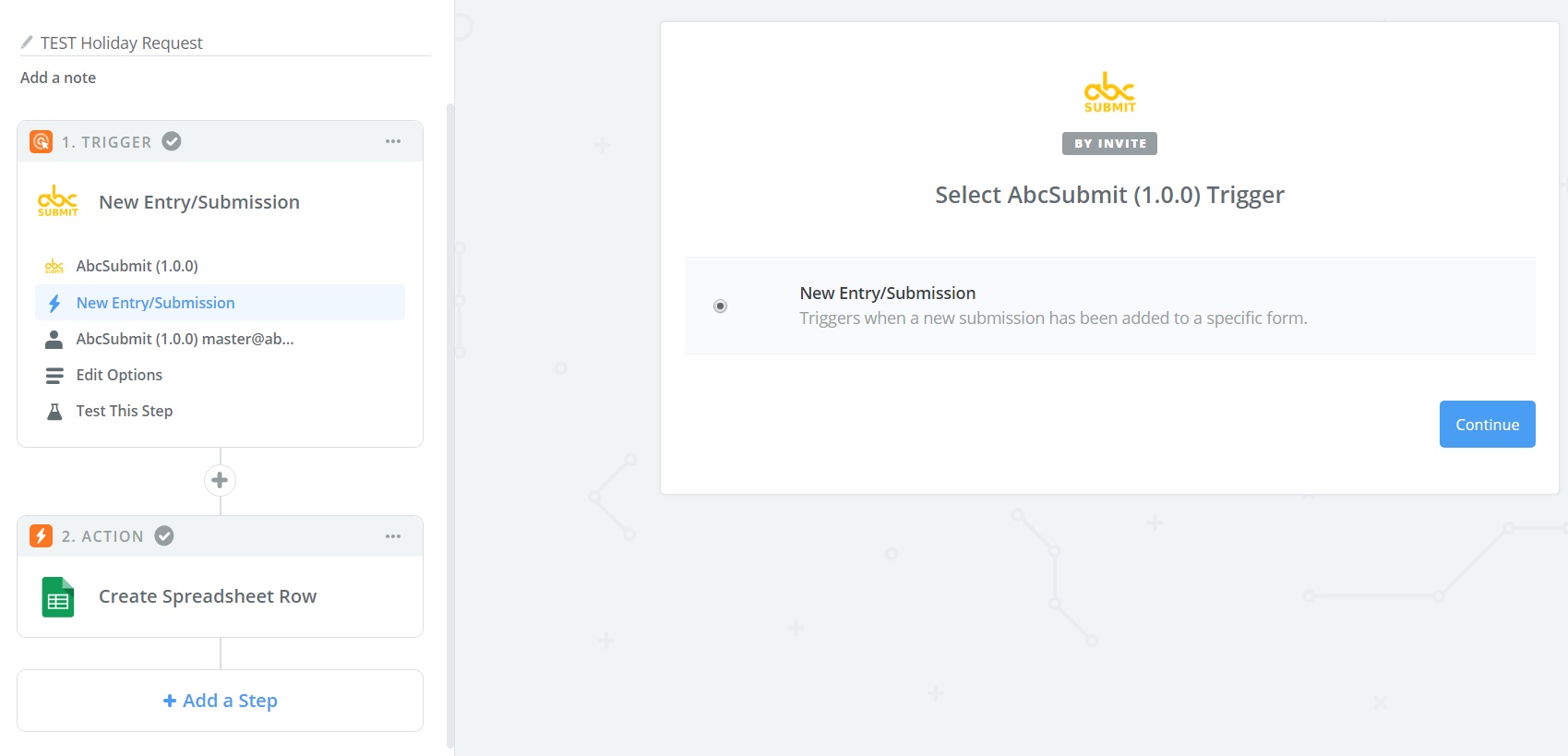
Example: send new form submissions to Google Sheets
- Create a spreadsheet with stable column headings.
- Choose AbcSubmit’s New Submission trigger and select the source form.
- Add Google Sheets as the action app and select the action that creates a row.
- Choose the spreadsheet and worksheet deliberately.
- Map AbcSubmit fields into the matching columns.
- Run a test and confirm that dates, numbers, multiline text and blank fields appear correctly.
- Publish the Zap, submit another entry and verify the live result.
Do not rename or reorder destination columns casually after launch. If the spreadsheet structure changes, review and retest the mapping.
Build dependable automations, not fragile handoffs
Filter early
When your Zapier plan supports it, stop irrelevant records before they consume later actions.
Use stable identifiers
Carry a submission ID or another unique reference into the destination to investigate duplicates.
Handle optional fields
Test records where conditional answers are absent so downstream steps do not unexpectedly fail.
Normalize formats
Check dates, phone numbers, names and numeric values before another app relies on them.
Assign an owner
Decide who receives failure alerts and who has permission to reconnect expired app accounts.
Document the workflow
Record the trigger, mappings, filters, destinations and expected outcome for future maintainers.
AbcSubmit workflows and Zapier: when to use each
AbcSubmit workflows operate around forms and can provide conditional branches, notifications, approvals, edit requests and integration actions according to the selected plan. Zapier extends a submission into other supported applications. They can complement each other.
| Need | Good starting point |
|---|---|
| Send a form notification | AbcSubmit notification or workflow capabilities |
| Route a request for human approval | AbcSubmit approval workflow |
| Add a new submission to another supported app | Zapier integration |
| Update different systems after an internal decision | AbcSubmit workflow followed by an appropriate integration action |
| Complex cross-app logic | Evaluate Zapier’s current multi-step, filter and path features and plan requirements |
Explore form automation software, multi-step approvals and workflow templates.
Security and privacy checklist
- Send only the fields required by the destination process
- Confirm that every connected app is approved for the type of data involved
- Use organization-managed accounts instead of personal credentials where appropriate
- Restrict access to Zap history, form submissions and destination records
- Review retention, regional and contractual requirements
- Do not place passwords, API keys or payment card data in ordinary form fields
- Remove obsolete connections and offboard former staff promptly
- Reauthorize connections through official account flows when credentials change
- Review logs without exposing sensitive answers unnecessarily
- Test changes in a safe workflow before editing a production Zap
Zapier integration troubleshooting
| Problem | What to check |
|---|---|
| No sample submission appears | Confirm the selected form, submit a fresh representative entry and reconnect the AbcSubmit account if required. |
| Some fields are missing | Make sure conditional fields were present in the test record, then refresh trigger data and remap. |
| Wrong values reach the app | Inspect each mapping, data type, formatter step and destination field. |
| Duplicate records appear | Review Zap history, repeated submissions, retries and whether a stable unique ID can prevent duplicate creation. |
| The Zap is delayed | Check Zapier’s current polling behavior, task status and plan-specific intervals. |
| The connection expires | Reconnect through Zapier’s official app-connection controls and retest the complete workflow. |
| A working Zap breaks after edits | Review renamed form fields, changed choices, destination columns and permissions. |
AbcSubmit Zapier integration FAQs
What starts an AbcSubmit Zap?
The current Zapier listing provides a New Submission trigger that runs when a new submission is added to a selected AbcSubmit form.
Which apps can I connect to AbcSubmit?
Zapier’s AbcSubmit page lists pairings including Gmail, Google Sheets, Google Drive, Google Calendar, Mailchimp, ActiveCampaign and others. Available actions and apps can change, so verify the exact combination in Zapier.
Do I need to write code?
Typical Zaps are configured through Zapier’s visual interface. More advanced transformations or unsupported requirements may need additional Zapier features, webhooks or developer work.
Why is my form submission not appearing immediately?
The trigger is listed as polling, and polling frequency can depend on the Zapier plan. Also check whether the Zap is on, the correct form is selected and the run encountered an error.
Can Zapier process file uploads?
File handling depends on the value AbcSubmit supplies, the destination action and access permissions. Test file size, URL access and retention with non-sensitive sample files before launch.
Should I use an AbcSubmit workflow or Zapier?
Use AbcSubmit workflows for form-centered routing, notifications and approvals. Use Zapier when a submission needs to start work in another supported app. Some processes benefit from both.
What happens if I change a form field?
Renaming, removing or changing a field can affect mappings. Refresh the trigger sample, inspect every mapped action and run a complete regression test after form changes.
Turn the next submission into useful work
Build a clean form, connect one carefully chosen destination and test the full automation before expanding it.